
Gemini Notebook (formerly NotebookLM)‘s transcript feature is an efficient tool for turning speech into usable meeting records. The standard workflow: record a meeting on iPhone, upload it to Gemini Notebook, let the Studio panel produce a full transcript in 1-2 minutes, then send it to a large model for meeting-note cleanup. The whole flow takes about 15 minutes, much faster than manual cleanup.
Google renamed NotebookLM to Gemini Notebook on July 16, 2026. It is the same product, and existing notebooks and links are not affected.
Why Use Gemini Notebook for Transcripts
There are many speech-to-text tools: Whisper, CapCut, Otter.ai, and macOS built-in Dictation. Among them, Gemini Notebook’s difference is that the transcript is cleaned up by AI, so the output quality is one level above ordinary speech recognition.
Typical speech-to-text tools faithfully write out every sound, including filler words like “uh,” “um,” “like,” and “then that thing.” Gemini Notebook automatically removes filler words and adds paragraph breaks, so the output already reads close to usable meeting notes.
It is also free, requires no extra software, and works with a Google account login. For everyday meeting users, there is no strong reason to switch away.
How to Turn a Recording into a Transcript with Gemini Notebook
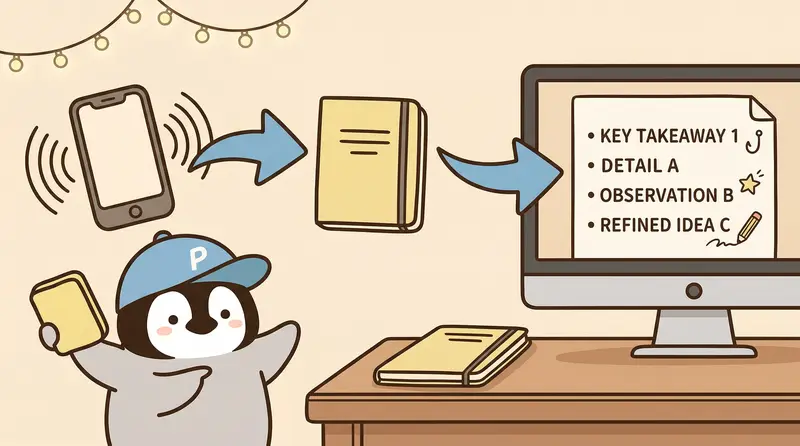
Step 1: Record with iPhone
Before the meeting, open the built-in iPhone Voice Memos app and start recording. Put the phone near the middle of the table, as close as possible to the people speaking.
In noisy environments such as cafes or coworking spaces, recording quality directly affects recognition accuracy. In practice, recordings from noisy restaurants may be only 60% usable, with the rest misrecognized. Quiet meeting rooms are basically fine.
Step 2: Upload to Gemini Notebook
After recording, AirDrop the M4A file to your computer, or upload directly from Gemini Notebook on iPhone. Open a new Notebook in Gemini Notebook and add the audio file as a source. MP3, M4A, and WAV are supported. iPhone M4A files can be uploaded directly without conversion.
Step 3: Wait for the Studio Panel to Produce the Transcript
After upload, type in the text box:
輸出逐字稿到 Studio 介面內
輸出逐字稿到 Studio 介面內
Gemini Notebook's Studio panel starts processing automatically. A 30-minute recording usually produces a transcript in about 1-2 minutes. A 60-minute recording takes around 3-4 minutes.

The generated transcript already has paragraph breaks. Each paragraph roughly corresponds to one topic or one speaker's continuous turn, unlike Whisper's long unsegmented output.

### Step 4: Send It to a Large Model for Post-Processing

After getting the transcript, copy the full text into a large model such as [Claude](/en/ai/claude/) with this prompt:
請整理這份會議逐字稿,輸出格式:
- 會議摘要(3-5 句)
- 關鍵決策(條列)
- 待辦事項(誰、做什麼、deadline)
- 需要後續討論的議題
Claude can usually finish the cleanup in about 30 seconds. Paste the resulting meeting notes into Notion, and the job is done.

## YouTube Video Transcripts: The Fastest Method

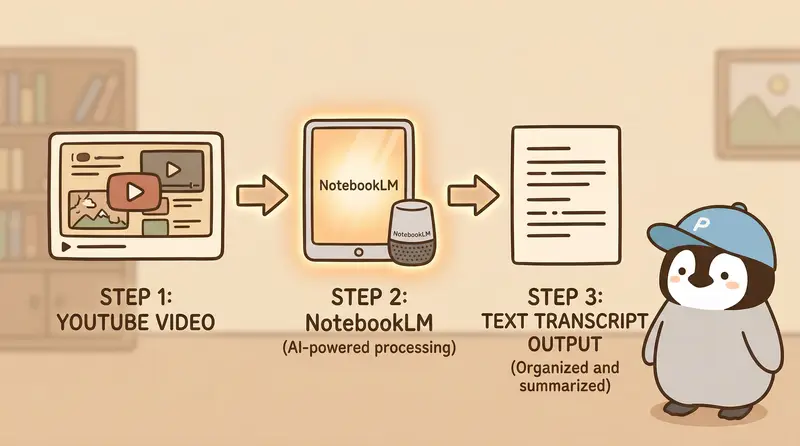
The iPhone → audio upload flow is for meetings you record yourself. If the material is already a YouTube video, do not take the long route. Paste the URL directly.

### Steps

1. Copy the target video URL on YouTube
2. Open a new Notebook in Gemini Notebook, choose "YouTube" in the Sources panel
3. Paste the link and submit. The system will show a video thumbnail, which means subtitles were captured successfully
4. Put this prompt into the dialog:
請根據上傳的 YouTube 影片,輸出:
- 完整逐字稿(依時間軸分段,每段標上時間戳)
- 影片結構大綱(章節標題 + 每章 3-5 個重點)
- 關鍵引述(最值得記下的 3 句話,附出現時間)
- 最後給一段 150 字以內的總結
Gemini Notebook outputs the transcript, structure, and quotes together. You can copy the whole block into Notion or Obsidian as study notes.
### Real Case: Digesting a 45-Minute AI News Analysis Video in 5 Minutes
For an OpenAI launch video marketed as a "10-minute highlight summary" but actually 45 minutes long, the process can be:
1. Paste the video URL into Gemini Notebook, subtitles ready in 30 seconds
2. Run the prompt above, get a timestamped transcript + chapter highlights + key quotes in 2 minutes
3. Quickly scan the outline and identify the chapter worth watching closely
4. Jump back to that timestamp on YouTube and watch 5 minutes
From starting to finishing the part that matters, the whole process takes under 10 minutes. It is much more efficient than watching the whole video at 1.5x speed.
### What If There Are No Subtitles?
Not every video has subtitles. If the creator did not enable them, or automatic subtitles are turned off, pasting the link will fail directly.
The fallback is to use yt-dlp to download the audio track, or use a YouTube to MP3 online tool, then follow the audio-file upload flow. This adds about 2 minutes, but Gemini Notebook's Studio panel will run speech recognition itself and still produce a decent transcript.
The YouTube link feature is smoothest under a Google AI Pro subscription (Taiwan NT$650/month, includes Gemini Notebook Pro quota). The free tier's daily limit of 50 chat queries can be hit during heavy weekend video catching-up. If the budget is tighter, Google AI Plus (NT$260/month) can be considered first; chat quota and Audio Overview counts are both loosened.
## Which Audio Formats Does Gemini Notebook Support?
- **MP3**: the most universal; most recording software exports this
- **M4A**: the default format for iPhone Voice Memos, upload directly without conversion
- **WAV**: lossless format, larger files but best quality
- **YouTube video URL**: paste the link, and the system automatically grabs subtitles to generate a transcript
Google Meet and Zoom recordings can also be used. Meet recordings are stored in Google Drive; download the MP4 and upload it. Zoom local recordings also save an audio-only M4A file, and that file is faster to use directly.
## Gemini Notebook Transcript Quality Test
The same 25-minute meeting recording (Mandarin, 3 speakers, meeting room environment) was transcribed with Gemini Notebook, CapCut, and Whisper.
### Recognition Accuracy
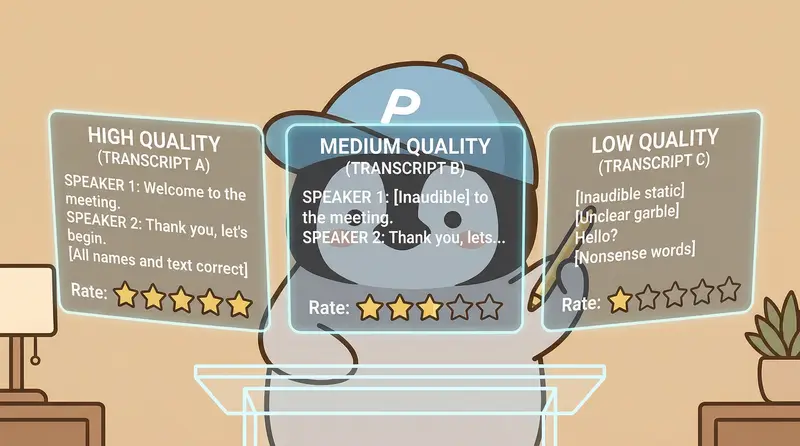
The three tools have similar basic recognition rates, roughly 90-95%. Differences mainly appear in proper nouns and names. Gemini Notebook recognizes technical terms slightly better than CapCut, but the gap is not large.
### Output Usability
This is the key difference.
- **Gemini Notebook**: paragraph breaks, filler words removed, smooth sentences. It can be read immediately and used as formal notes after light proofreading
- **Whisper**: highest raw recognition accuracy, but output is one unorganized block of text with every "um," "right," and "then" included. It takes 10-15 minutes to clean up manually
- **CapCut**: has timeline markers and is good when paired with video. Plain-text quality sits between the two
### Processing Speed
Gemini Notebook and Whisper both finish within 2 minutes. CapCut requires importing the video first, even when there is only an audio track, adding one more step.
## Gemini Notebook vs CapCut: What About Taiwanese?
Gemini Notebook is not stable enough for pure Taiwanese content, Taiwanese-language programs, or meetings that mix Mandarin and Taiwanese.
Gemini Notebook's Taiwanese speech recognition is weak. Pure Taiwanese content recognition is only about 30-40%, basically unusable. Mixed Mandarin-Taiwanese is a little better: Mandarin parts are recognized normally, while Taiwanese parts are often guessed incorrectly.
The surprising part is that **CapCut wins by a lot here**. Its Taiwanese speech recognition can reach around 70-80%, and it marks the timeline, which makes it easier to go back to the original audio and correct.
Practical approach:
- Pure Mandarin content → Gemini Notebook handles it end to end
- Content with Taiwanese → use CapCut to produce an initial transcript → put that transcript into Gemini Notebook as a source → use Gemini Notebook Q&A for further analysis
It adds one step, but each tool does what it is strongest at.
## A Complete Workflow with Large Models
The transcript itself is only raw material. The real time savings come from the large model processing afterward.
Repeatable workflows:
**Daily meetings** → Gemini Notebook transcript → Claude turns it into structured notes → Notion
**Customer interviews** → Gemini Notebook transcript → Claude extracts customer needs and pain points → user story
**Talks / courses** → Gemini Notebook transcript → Claude organizes an article outline → rewrite as a blog post
**Podcast content** → Gemini Notebook transcript → Claude extracts 5 key takeaways → social posts
The prompt differs by scenario, but the core logic is the same: Gemini Notebook turns speech into text, and Claude turns text into something useful.
<div class="pitfall" data-nosnippet>
## Pitfall Notes
### Large Files Can Fail to Upload
A 2-hour recording (about 150 MB) can easily disconnect halfway through upload. For recordings longer than 1 hour, cut them into 30-40 minute segments with QuickTime before uploading.
### Recognition Fails When Multiple People Talk at Once
Three people taking turns is fine, but if someone interrupts or two people speak at the same time, that segment's recognition result is basically messy. Every speech-to-text tool gets stuck here.
The practical fix is to listen to the original recording and manually patch those few segments. In a typical 30-minute meeting, only 2-3 segments need manual correction, which takes under 5 minutes.
### Removing Too Many Fillers Can Occasionally Drop Information or Misrecognize Meaning
Gemini Notebook's automatic filler removal is an advantage, but it can occasionally remove too much. For example, in "this proposal is 'just okay'," the "just okay" can sometimes be treated as filler and removed, leaving only "this proposal," which changes the meaning completely. For important meetings, it is worth spending 5 minutes quickly scanning the transcript to confirm no segment was over-cleaned.
</div>
## Penchan's Take
Gemini Notebook transcripts are a feature [Penchan](/en/about/) uses every week. The fixed flow is iPhone recording → AirDrop to computer → upload to Gemini Notebook → Studio outputs transcript → send to another large model for follow-up analysis (meeting notes, customer interview cleanup, podcast transcription). The whole process takes 15 minutes, much faster than the old one-hour manual cleanup.
CapCut's Taiwanese recognition is the key tool that fills Gemini Notebook's weak spot. Voice messages from elders, Taiwanese-language programs, and mixed-language meetings all go through CapCut first, then the transcript goes into Gemini Notebook for Q&A and summaries. This two-tool path adds one step, but each tool handles the part it is best at.
Pasting a YouTube link directly to get a transcript changed how long videos are digested. Before, watching a 45-minute video at 1.5x speed still left the key points vague. Now it takes 5 minutes to identify the chapters actually worth watching. The Gemini Notebook Pro quota included in Google AI Pro has a high ROI for workflows that need to follow many videos.
The overall lesson: the transcript itself is an intermediate artifact. The value comes from connecting it to a large model for structured processing afterward. Gemini Notebook's role is to make the first segment of that pipeline clean, so the later stages work well.
## Further Reading
- [Complete Gemini Notebook Tutorial: Free Guide + Plus Upgrade Guide](/en/ai/notebooklm/)
- [Gemini Notebook Podcast Tutorial: Generate AI Audio Shows in 3 Free Steps](/en/ai/notebooklm/notebooklm-podcast-tutorial/)
- [Gemini Notebook Advanced Tips: 11 Practical Workflows from Research to Slides](/en/ai/notebooklm/notebooklm-advanced-tips/)
- [CapCut AI Subtitle Tutorial: Automatic Taiwanese Recognition](/en/ai/creative/capcut-ai-subtitle-guide/)
- [AI Meeting Notes Workflow: Free Plan](/en/ai/meeting/meeting-free-workflow/)
---
*This article compares AI tool features and subscription plans. It does not constitute securities or investment advice. Actual pricing should follow the latest official announcements from each platform, and the information here may become outdated.*
*— Penchan*