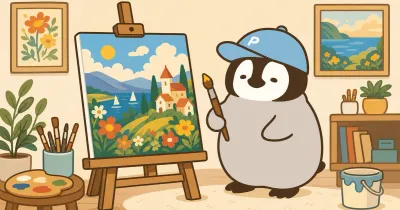
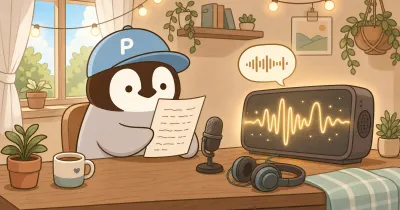
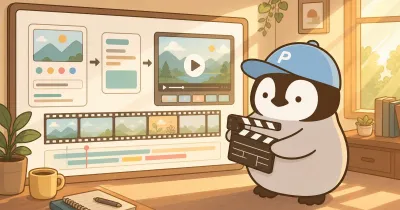
AI image and visual creation is not just “generate one picture.” A complete workflow is usually: choose the tool → write the prompt → generate and select → remove background or edit → place the asset into a deck, social post, or video subtitle workflow. This guide uses four stages so you do not only learn tool names.
AI visual tools have advanced sharply over the past two years. The era of “take a screenshot and add text yourself” has moved toward “let AI handle most everyday visuals.” This article is a 2026 overview of AI visual creation: which tools are worth learning, what the real workflow looks like, and what AI still cannot do.
Four-Stage Guide from Tool to Finished Asset
| Stage | Main question | Start here |
|---|---|---|
| Choose tool | style, speed, natural-language prompts, or free access? | AI image tools comparison |
| Write prompt | how to make output stable and less AI-looking? | AI image prompt guide |
| Edit / remove background | how to handle edges, product shots, cleanup? | AI background removal guide |
| Video / subtitles | where does AI save the most time after images? | CapCut AI subtitle guide |
For a blog cover, Gemini / ChatGPT + structured prompt + final text in Figma is enough. If video enters the workflow, CapCut subtitles and AI voice tools become relevant.
2026 AI Image Tools: What Is Worth Learning
This space has an overwhelming number of tools, but only a few are truly worth learning. The shortlist below covers the main image generation tools and one video subtitle tool.
AI Image Tool Comparison: Five Major Tools
| Tool | How it works | Strengths | Weaknesses | Price |
|---|---|---|---|---|
| Midjourney | Discord / web | many art styles, mature community ecosystem | steep learning curve | US$10-120/month |
| Gemini (Nano Banana Pro / Nano Banana 2) | web / API | high quality, strong prompt understanding, fast | occasionally refuses generation, realistic style bias | free / paid |
| ChatGPT built-in image generation (ChatGPT Images) | ChatGPT conversation | convenient integration and multi-turn editing | more cartoon-like style and weaker detail control, based on version 2.0 testing | Free has an allowance; Plus has more |
| Canva AI | Canva editor | lowest barrier | poor quality, strange colors | included in Canva Pro ($12.99-15/month) |
| Stable Diffusion | local / cloud | completely free, model fine-tuning possible | technical setup, GPU-heavy | free (hardware separate) |
A deeper comparison of the three mainstream image tools is in AI Image Tools Compared: Midjourney vs Gemini vs ChatGPT.
Gemini’s image generation is powered by Google’s Nano Banana family: Nano Banana, or Gemini 2.5 Flash Image, launched in August 2025; Nano Banana Pro, or Gemini 3 Pro Image, followed in November 2025; and Nano Banana 2, or Gemini 3.1 Flash Image, arrived in February 2026. These are the three main generations; Google also offers a lighter Nano Banana 2 Lite. When you generate an image on the Gemini website, a model in this family runs underneath, with the exact version subject to official announcements. All Google-generated images embed a SynthID watermark.
A Workflow That Actually Runs
The standard flow from idea to finished image:
Step 1: Clarify what you want. Opening Gemini and trying random prompts is the easiest way to get drifting results. First write down, in your head or notes: where this image will be used, what readers should associate with it, and whether the style fits the article. If you want to generate quickly, you can talk with AI first, then paste a separate prompt for generation.
Step 2: Write the prompt + attach reference images. Split the prompt into four parts: subject, style, composition, and detail constraints. Reference images matter a lot, especially when drawing a specific character. For example, if you do not attach a reference image for a brand penguin character, AI easily draws the mouth as a yellow pointed beak, because most real penguins in training data look that way.
Step 3: Generate + choose. Generate 3-4 images at once and pick the closest one.
Step 4: Manual finishing. In my experience, about 80% of AI images have small problems: blurry text, a skewed element, or colors that do not match the brand palette. Give the model direct edit instructions, or use Figma and another image editor for the final pass.
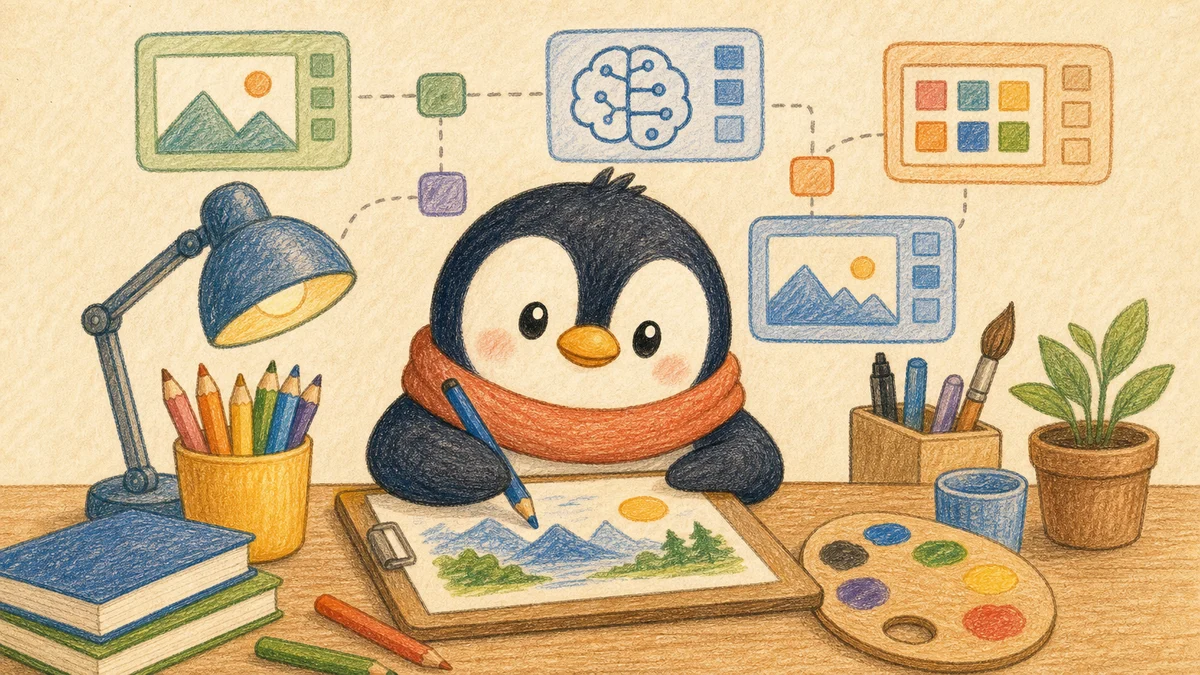
With my current workflow, the whole process takes about 5-15 minutes per image. It is much faster than searching stock libraries for free assets and editing them manually. Compared with hiring a designer, the quality gap still exists, especially when precise brand alignment is required.
AI Image Prompts Decide Success or Failure
A casual prompt like “draw a penguin using a computer” produces different results every time, and the quality is unstable. After switching to a structured prompt, the success rate improves sharply.
Across major official docs, the key elements can be grouped into four parts:
- Subject description: what to draw, as specific as possible
- Style specification: watercolor, 3D, pixel art, colored pencil
- Composition description: camera angle, whitespace, ratio
- Negative constraints: what to avoid (yellow beak, oversaturated colors)
Prompt writing and practical Gemini prompt examples are in AI Image Generation Prompt Tips.
Supporting Guide TL;DR: Tools → Prompts → Editing → Video
Tool comparison: Gemini is fast, Midjourney has style, ChatGPT is convenient
The AI image tools comparison recommends switching tools by scenario rather than naming one overall winner. Gemini is easiest for natural-language prompts and everyday visuals, Midjourney retains an advantage in strongly stylized illustration and social graphics, and ChatGPT fits when you are already discussing content and want to generate or revise it immediately. Canva AI is not recommended as a primary generator, though Canva remains useful for final layout and converting assets into social-media formats.
Prompts: four layers beat adjective stacking
The AI image prompt guide breaks prompts into subject, style, composition, and constraints. Describe the character and scene, choose colored pencil / watercolor / flat illustration, specify ratio and whitespace, then add constraints such as no text or no oversaturation.
Background removal: do not open Photoshop for every asset
The AI background removal guide covers post-generation cleanup. ChatGPT / Gemini are enough for social images and presentation art; remove.bg handles hair edges better, PhotoRoom fits product batches, and Canva fits people already designing there.
Video subtitles: the highest-ROI AI visual step for creators
The CapCut AI subtitle guide belongs in the visual hub because video production time often disappears into transcription, proofreading, and timeline alignment. CapCut turns Mandarin, regional Chinese varieties, and mixed-language audio into editable subtitles, then exports SRT files for model-assisted cleanup.
Canva AI: Why I Do Not Recommend It
“I already have Canva Pro, why not just use its AI?” is a common thought. In practice, several problems show up: strange gradients, broken body proportions, and an overall plastic “AI template” feel. After testing for a while, selecting and repairing images took more time than regenerating in Gemini/ChatGPT.
Canva’s strengths are fast generation and layout/design templates. AI image generation is not its home turf.
Logos and Brand Images: What AI Still Cannot Do
Precise brand logos are still not something AI handles well. Generate a logo with any tool and the result usually looks “almost right but wrong”: the lines are not clean enough, proportions change every time, and colors cannot be specified accurately to a color code.
The practical solution is drawing manually in Figma. Logos need pixel-level control. AI is good at “direction and mood,” but still far from detail precision. For social visuals, blog covers, and presentation illustrations, AI is good enough. For business cards, brand identity systems, and anything printed, use professional design tools.
CapCut AI Subtitles: A Hidden Tool for Video Creators
Outside image generation, the AI visual tool most worth mentioning is CapCut’s automatic subtitles. Its speech-to-subtitle accuracy is surprisingly high for Mandarin, regional Chinese varieties, and mixed Chinese-English interviews.
The operation is simple: drop in the audio → click auto recognition → fix typos → export. The whole flow is about ten times faster than typing subtitles manually.
See the CapCut AI Subtitle Guide for the detailed workflow and speech-recognition tests.
AI Voice: Still an Early Field
Tools like ElevenLabs and Play.ht are already close to human quality. Chinese and Japanese still feel less stable than English, but they are catching up.
CapCut itself has AI voice features, but the voice is mechanical and clearly behind ElevenLabs demos. For content creation centered on text + images, AI voice is not a required workflow. For video-led production, it is the next area worth watching.
Pitfall Notes
Facial Features of Brand Characters
Models easily draw characters incorrectly when their features differ from common patterns. For example, the Penchan character has a round orange beak, but in my tests roughly one in three images changed it into a pointed yellow beak. The model may be applying the common appearance of real penguins. The workaround is to emphasize “orange rounded beak” in every prompt and attach a reference image. The success rate improves noticeably, though the character still drifts occasionally.
Style Consistency
This is the hardest part of making a series. The same prompt can produce completely different styles in two runs. Specifying very detailed style parameters in the prompt only helps so much. The practical method is to generate the whole batch in one session and rely on same-session consistency. If you need to add more the next day, attach reference images again.
Text Rendering
Text rendering in AI images has improved. Short text is worth trying, but long Traditional Chinese sentences and brand lettering still need character-by-character review. For finished work, I add the text in Figma rather than relying on the image model.
Penchan’s experience
I first encountered AI image generation during Midjourney’s Discord era. I later moved my primary workflow to Gemini and ChatGPT because natural-language prompts work directly, I can upload reference images to maintain brand-character consistency, and single-image generation is fast enough for daily content production.
I tried Canva’s AI for a while. Poor color gradients and broken proportions made repair slower than regenerating from scratch, so I returned to Gemini and ChatGPT. Stable Diffusion is not in my workflow because local GPU setup is not worthwhile for needs such as blog covers and social images.
I still create logos and precise brand assets manually in Figma. AI is good at direction and mood; pixel-level precision is another matter.
CapCut’s automatic subtitles were unexpectedly useful. Its recognition of regional Chinese speech works, so CapCut is my standard starting point when a workflow turns audio into text before sending it to another model for analysis.