
What You Can Do on CapCut’s Free Plan
This article covers the international version, CapCut. The China app Jianying is a separate product, so look up its plans and payment methods separately. You can edit videos on CapCut’s free plan. There are 4 places where you can get stuck: Pro assets, 4K and 60fps, video length, and AI credits. Most of them only show up when you tap “Export”.
Before you start, check the diamond marks on assets. A blue diamond means the asset works with Standard. A purple diamond means Pro only. Both are paid content.
4 Places the Free Plan Gets Stuck
- Using Pro assets or features: an upgrade prompt appears when you export. In the mobile app you can tap cancel and still export, but the video carries a CapCut watermark.
- 4K and 60fps (sharper picture, smoother motion): on desktop, non-Pro users see the 4K and no-watermark export options grayed out or locked. On the web, choosing 4K, 60fps, or no watermark triggers an upgrade prompt, and a free account exporting 4K may get a watermark or a bitrate limit (bitrate affects picture quality).
- Video length: in the mobile app, exporting a video longer than 15 minutes may trigger an upgrade prompt. The limit varies by region.
- Some AI features need credits: credits are a separate balance on your account. Features such as AI image generation and smart background removal use credits, and if you run short you may need to buy more or subscribe. Before running a feature, check how many credits it needs, your balance, and the expiry date. Subscription, purchased, and promotional credits expire on different schedules, so go by what your account shows.
If a video made from a template has a watermark, first check whether the timeline ends with a branded end clip and delete it. Then check the other tracks for a logo layer, remove it, and preview the whole video. If the watermark comes from a paid asset, deleting the end clip does nothing. Remove the paid content or subscribe to the plan you need.
Standard vs Pro
| Item | Free | Standard | Pro |
|---|---|---|---|
| Platforms where paid benefits work | Not applicable | Mobile app only | Mobile, desktop, web |
| Diamond assets | Preview only, upgrade to export | Blue diamond | Blue and purple diamond |
| AI tools | Some limited by Pro or credits | Basic tools such as noise reduction and volume adjustment | Advanced AI tools such as auto captions, some also need credits |
| Cloud storage | 1GB free | About 100GB | Up to 1TB |
This table compares only Standard and Pro. The official pricing page also lists Ultra and Teams, and the plans you can subscribe to are whatever your account shows. Standard is offered only in some regions. If you mostly edit on a computer, Standard will not help you: to use paid benefits in the desktop app you need Pro.
Only some auto-caption features are limited to Pro. Whether you get an upgrade prompt depends on your version, your account, and the export prompt. For steps, see the CapCut AI subtitle tutorial.
How Much Does CapCut Cost? Where to Check Prices
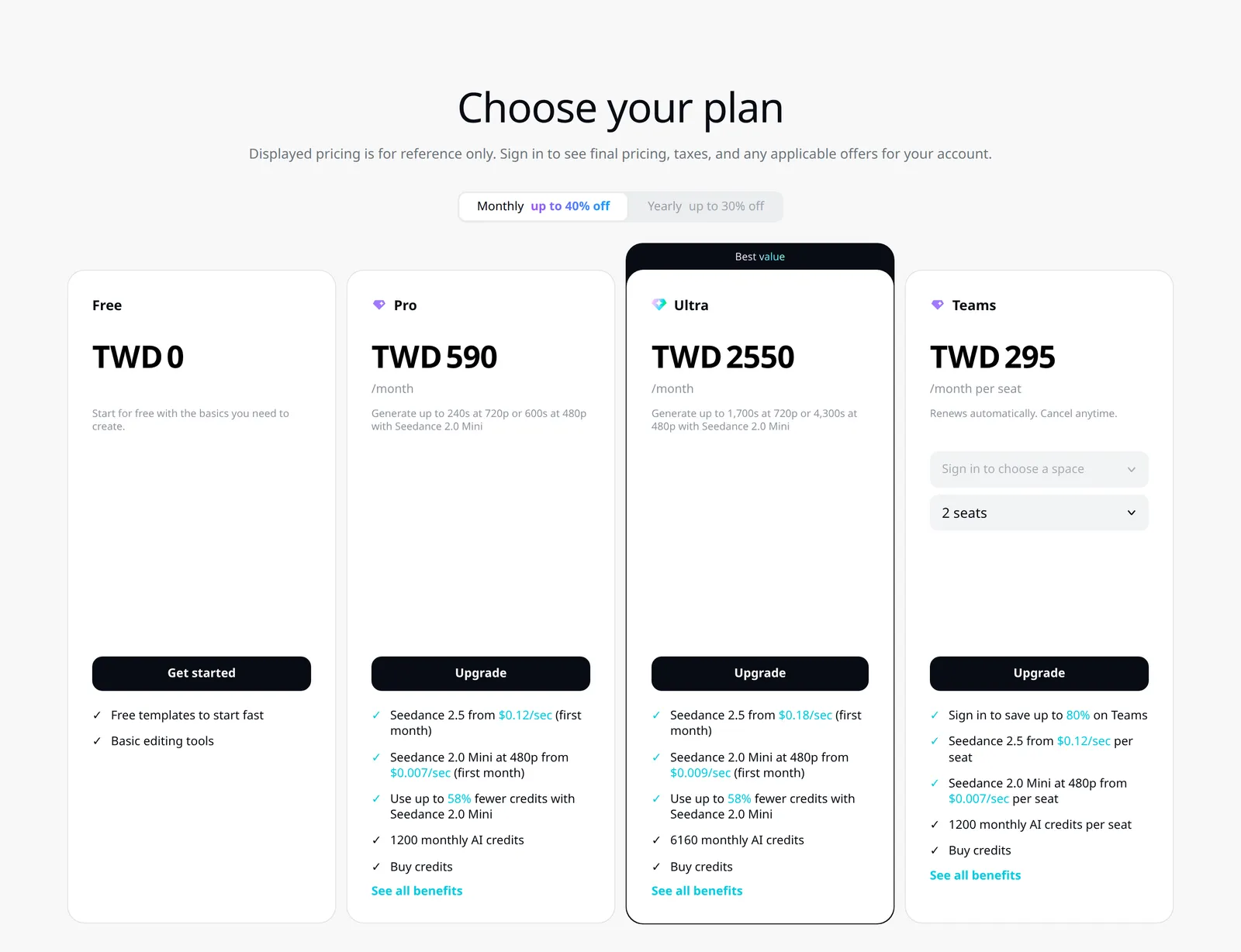
The official pricing page (capcut.com/pricing) shows each viewer their local price. On the pricing page shown in Taiwan, the reference prices are in New Taiwan dollars (TWD): Pro is TWD 590 per month or TWD 4,990 per year, Ultra is TWD 2,550 per month or TWD 29,000 per year, and Teams starts at TWD 295 per user per month (the price depends on the number of users). The page notes that prices are for reference only, and the final price, tax, and offers show after you sign in. To see your own price, go to “Upgrade” in the web version, or “Join CapCut Pro” on the “Me” page of the mobile app. For eligible accounts, the mobile app shows a “7-day free trial” option when you export.
Paid but Can’t Use Pro? Check These 3 Things First
- Sign-in method: a subscription is tied to the CapCut account you were signed in with when you bought it. If you bought with Apple sign-in and then sign in with a Google account, you will not get Pro. Sign out and sign back in with the method you used at purchase, and Pro usually returns.
- Region: Pro is restricted in some regions. In the mobile app, also check that the App Store or Google Play country or region matches the subscription region. If they differ, you may not get the paid benefits.
- Duplicate subscription: if you see “You’re currently subscribed to this” at checkout, the account or platform you are using already has an active subscription. Check the original plan first to avoid paying twice.
How to Cancel and Whether You Can Get a Refund
Check your receipt to see how you paid, then cancel in the same place. For the App Store, go to iPhone Settings, tap your name, then Subscriptions. For Google Play, go to Payments & subscriptions, then Subscriptions. For web payments, sign in to the CapCut account you bought with and find the subscription management page. For auto-renewing plans, cancel at least 24 hours before the renewal date. After you cancel, paid features generally stay available through the last day of the current period. Credits expire separately: subscription credits last only until the end of that subscription month, purchased credits are valid for 2 years from the purchase date and do not expire when you cancel, and promotional credits follow the promotion’s rules. Go by what your account shows.
If you had a legacy price, note that if you cancel auto-renewal and subscribe again after the plan expires, the new Pro price applies.
CapCut’s help pages say subscriptions are generally not refundable. The CapCut Terms of Service list a full refund within 14 days of subscribing if you have not used any paid service at all. Regional terms and Apple or Google payment rules may differ, so go by the terms shown at purchase.
After a subscription expires, your cloud storage shrinks. The free allowance is 1GB, and if you are over it you must delete files before you can upload again. You can still sign in and download existing videos from the cloud after expiry. If your drafts are stored in the cloud, back them up before the subscription ends.
Penchan’s Take
Whether to pay for CapCut depends on where export gets stuck for you. Before subscribing, export a short test video and see which prompt appears. That tells you which piece you are missing.
- You only edit your own footage and export at 1080p: the free plan is usually enough. Just avoid assets with a diamond mark.
- You edit almost entirely on your phone and often want blue-diamond assets: if your account shows Standard, check its price first.
- You want paid benefits or purple-diamond assets in the desktop app: first confirm that Pro includes the features you need, then consider paying for one month as a trial.
Further reading
- CapCut AI subtitle tutorial: auto-recognize Traditional Chinese and Taiwanese Hokkien, export SRT
- AI voiceover and text-to-speech guide
- AI video generation tools and how they differ
- AI image and visual creation guide overview
This article is compiled from CapCut’s official public information, and the fact-check date is November 14, 2026. Actual plans, features, prices, and refund terms are subject to what your account, the checkout page, and the applicable terms show.