ether.fi MCP lets AI assistants such as Claude or ChatGPT read spending, card, and balance information in your ether.fi Cash account, then explain in plain language where your money went this month. The connection is read-only, and ether.fi does not charge for it.
What is ether.fi MCP, and what can AI see?
MCP is a general standard that lets AI assistants connect to other services and read data. A connector is the link on the AI side. ether.fi calls this feature AI Connections. Once connected, AI can only read data: it cannot transfer money, withdraw, borrow, repay, or change card or account settings. It cannot see your full card number, CVC, or expiry date.
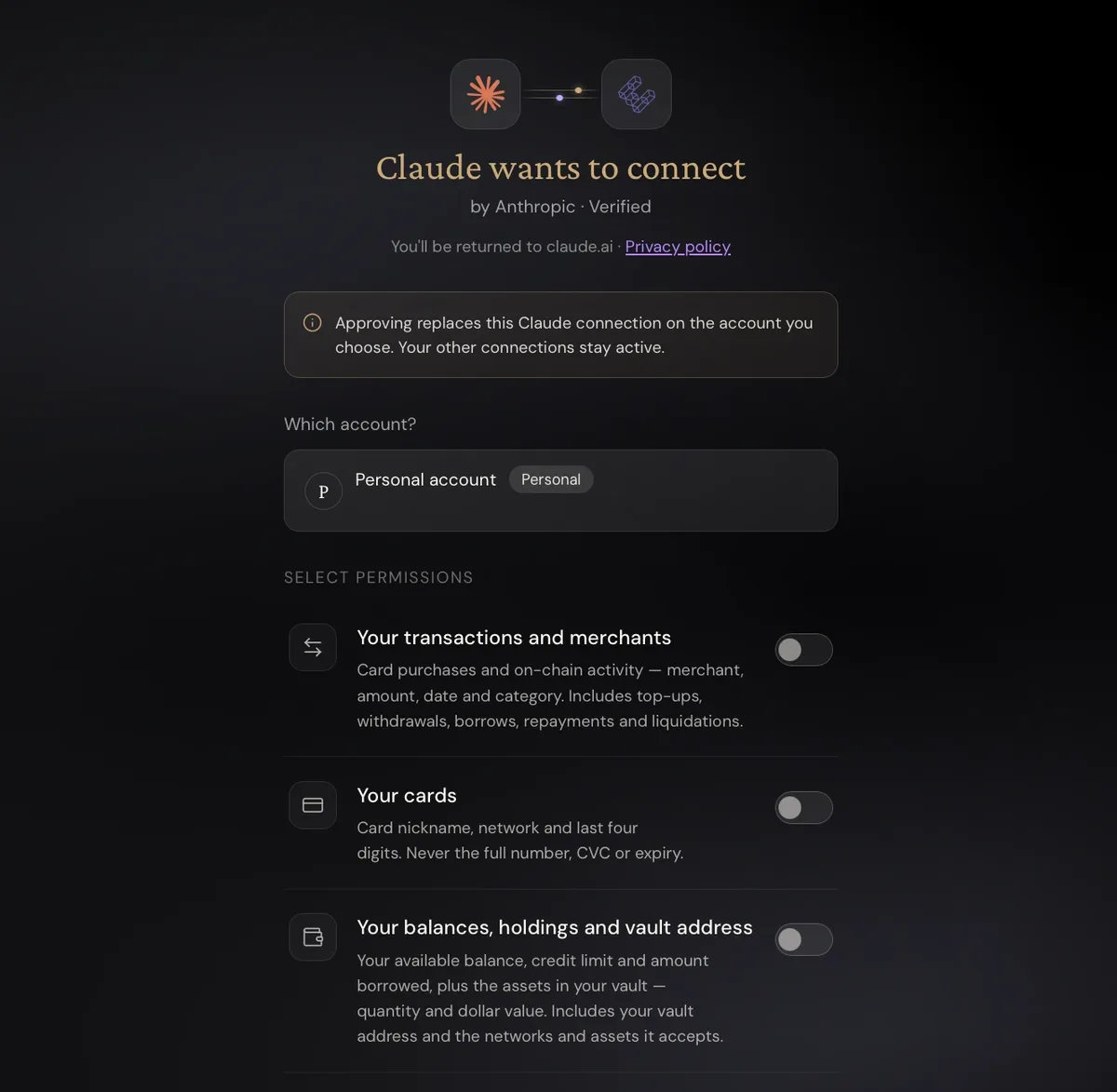
There are three switches to choose from when approving a connection. They are all off by default:
- Your transactions and merchants: card purchases, deposits, withdrawals, borrowing and repayments, liquidations, and rewards, including merchant, amount, currency, date, category, transaction status, and the last four digits of the card number.
- Your cards: card nickname, physical or virtual type, status, currency, and last four digits.
- Your balances, holdings and vault address: available and total balances, credit limit, borrowing, vault asset amounts and valuations, yield, vault address, and supported networks and assets.
Each connection can read one account only. Personal accounts are currently set up through the ether.fi website.
Before you start
- An ether.fi personal account and access to the web app.
- A passkey (a way to confirm your identity with your phone or computer’s fingerprint, face recognition, or screen lock). You need one to approve the connection. If you have not set one up, create one under Security and privacy in ether.fi settings, then reconnect.
- Claude: Free, Pro, Max, Team, and Enterprise can all add custom connectors; Free is limited to one. For Team and Enterprise, an Owner must first add it under Organization settings > Connectors.
- ChatGPT: Pro can connect to read-only servers; Business requires an admin or owner to create one, and Enterprise/Edu users need permission to create one. Adding a server is supported on the web only.
Connect ether.fi MCP to Claude
The screenshots below show Little Penguin’s setup in Claude Desktop.
- Sign in to the ether.fi web app, go to Settings → AI connections, and copy the connector URL
https://mcp.ether.fi/mcp. If you have connected another AI assistant before, click Connect another assistant. You do not need to do this for the first connection. - In Claude, open Customize > Connectors, click “+ Add” → Add custom connector. Name it ether.fi, paste the URL, and click Continue. If verification settings appear, check the detected settings and finish adding it.
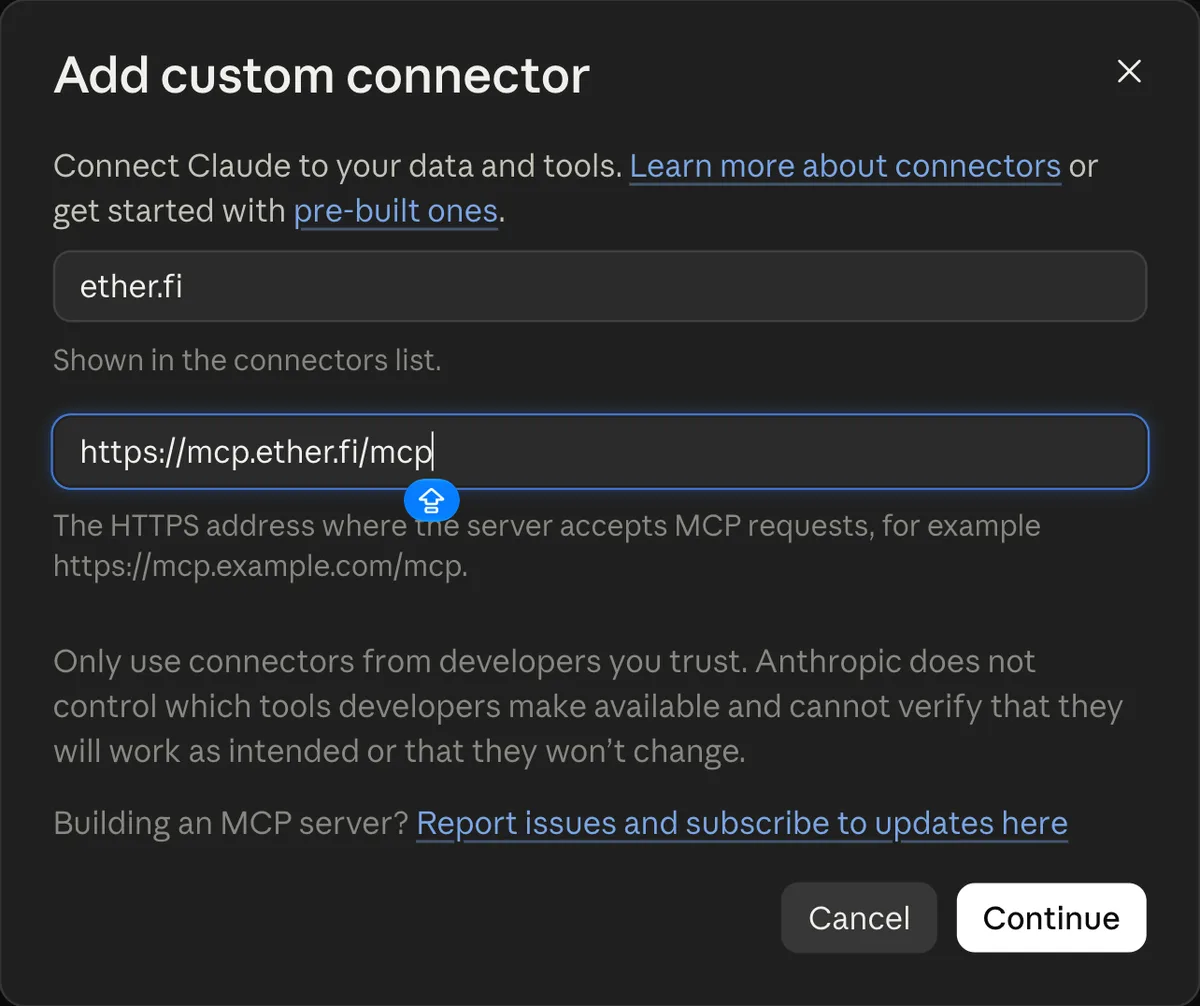
Screenshot: Little Penguin’s own setup
- When using Claude Desktop, your browser will show “Finish connecting a connector?” Confirm that this is the connection you just started, then click Continue connecting.
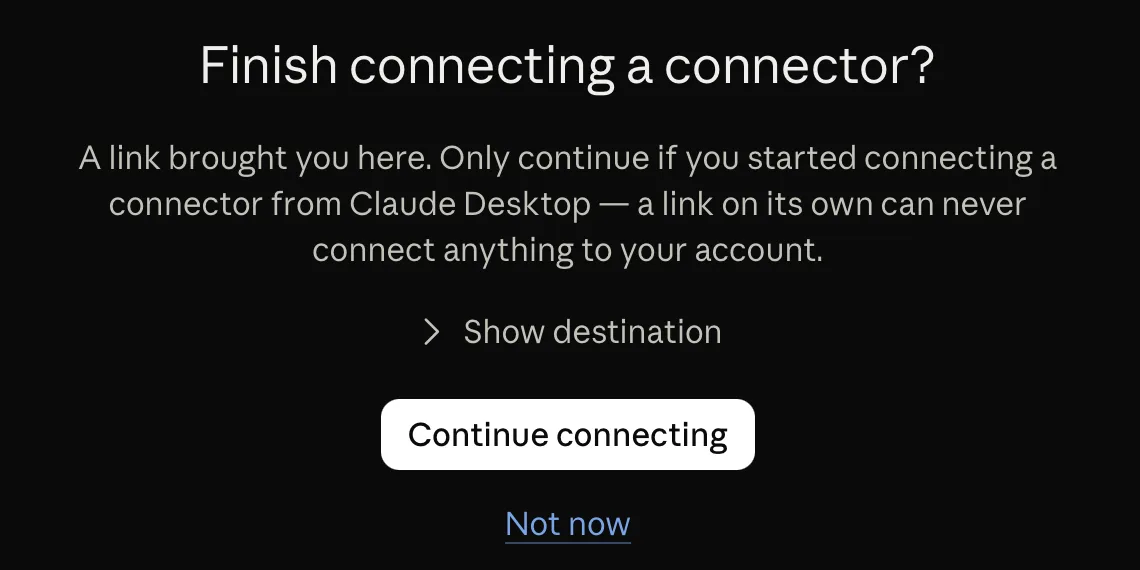
Screenshot: Little Penguin’s own setup
- You will be taken to ether.fi. Sign in first if needed, read the MCP Terms of Use, then click Agree and Continue. The approval page should say “Claude wants to connect.” Check for the Verified badge and make sure the assistant name matches the app you are using. Under “Which account?”, select your personal account.
- Under SELECT PERMISSIONS, switch on the permissions you need (see “What you can ask after connecting” below). Scroll to the bottom of the permission list and click Approve, then confirm with your passkey. You have 10 minutes to finish; if the request expires, start again from Claude.
Screenshot: Little Penguin’s own setup
- When “Finishing up…” appears, return to Claude Desktop. You are connected when you see “Connected to ether.fi.”

Screenshot: Little Penguin’s own setup
- To use the connector in a conversation, click “+” at the lower-left of the message box → Connectors, then turn on ether.fi. You can turn ether.fi on or off separately in each conversation.
After adding it, you can also use the connector in the Claude mobile app. Adding a connector on mobile is still in beta, so finish setup on a computer or in the web app.
Connect ether.fi MCP to ChatGPT
- As above, copy the URL from Settings → AI connections in ether.fi.
- In ChatGPT on the web, open Plugins, click “+” → Add custom MCP server (OpenAI’s official instructions).
- Enter a name, paste the URL, set up authentication as prompted, check the risk acknowledgement, and click Create as a plugin.
- On the ether.fi approval page, as with Claude, check Verified and the assistant name, choose permissions, click Approve, and confirm with your passkey.
- After installing the plugin, start a new conversation and type “@” to select ether.fi.
What you can ask after connecting
Most spending questions need only transaction access. The third prompt also needs card access, and the fifth needs balance access. Copy and paste a prompt into your AI assistant:
Group my ether.fi card spending from the past 30 days by category and merchant, and list the five largest expenses.Find my recurring subscription charges, calculate the annual cost of each, and list the next renewal date.Check my recent transactions for duplicate charges, merchants appearing for the first time, or charges still being processed.I’m traveling from [departure date] to [return date]. Organize my spending during that period by currency and category.About how much have I earned from ether.fi rewards and vault yield? How does that compare with my spending during the same period?For more ideas, ask AI “What can I do with my ether.fi data?” or visit ether.fi’s official examples.
Privacy and expiry
- The data you approve is shared with the AI assistant provider and may become part of your conversations.
- How that provider stores the data and whether it uses it for training depend on its terms, your plan, and your privacy settings.
- Disconnecting stops future reads; it does not delete data already shared.
- Your vault address (the address of your ether.fi account on the blockchain) is public and permanent. Anyone with the address can see on-chain activity, even after you disconnect.
Only turn on the switches needed for your question. That is the simplest way to protect your data.
Each connection expires 90 days after approval; using it does not extend the term. Seven days before expiry, the AI connections page shows “Expires in,” but no email or push notification is sent. After expiry, reconnect and approve with your passkey.
To disconnect, go to Settings → AI connections. The page lists each assistant, what it can read, and when it last accessed your account. Click Disconnect and confirm; the assistant will no longer be able to read data on its next request.
Don’t have an ether.fi account yet?
Apply for a card first, then connect it to AI. See the ether.fi card application guide, merchant tests in Taiwan, and ether.fi Cash Card comparison.