What the ChatGPT/Codex pet feature is
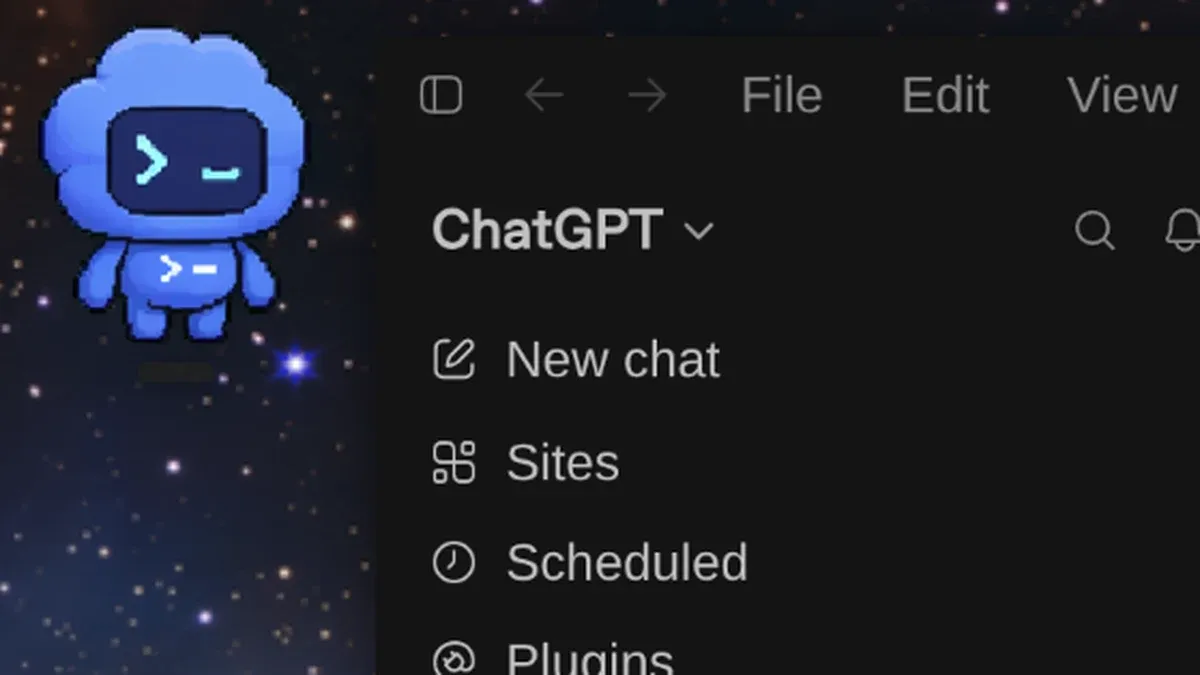
OpenAI added the pet (Pets) feature to the ChatGPT desktop app in May 2026. It has a pixel-art look, it animates, and it floats above every other window.
The bubble tells you what the AI is doing
The default pet is a blue terminal robot with >_ printed on its head and chest:
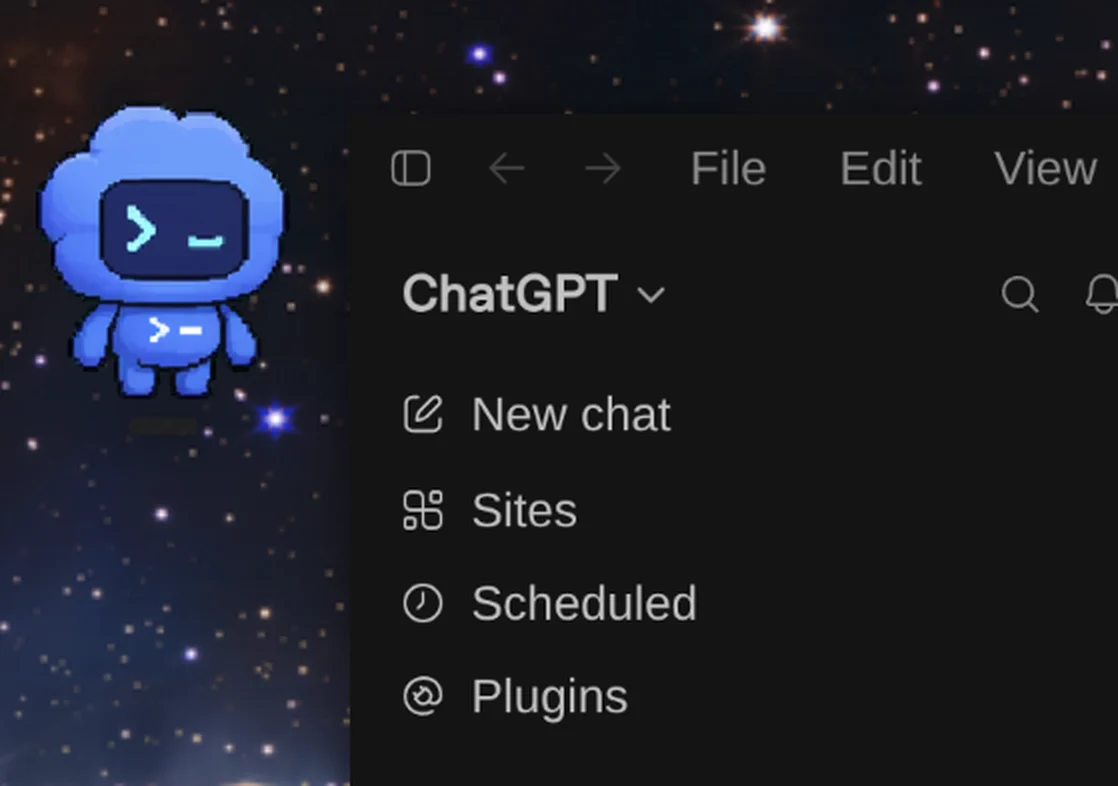
The genuinely useful part is the status bubble next to it. Say you give Codex a task that takes three minutes: you can minimize the window and get on with something else, and the pet stays in the corner showing progress. The official docs list four states:
| Bubble state | Meaning |
|---|---|
| Running | The chat is in progress |
| Needs input | Stuck, waiting for your approval or a decision |
| Ready | Finished, but not viewed yet |
| Blocked | Failed, or hit a system-level error |
Clicking the pet itself takes you back to ChatGPT, and clicking the activity in the bubble opens that chat directly. So this desktop pet doubles as a tiny progress indicator in the corner of your screen.
Switching it on: type /pet in the app
The fastest way in the desktop app is to type this straight into the input box:
/petOther entry points: pick Show pet from the command menu, go to Pets from the profile menu, or open the Pets tab in Settings. To put it away, type /pet again or pick Hide pet.
How to hide or turn off the ChatGPT pet
To hide the floating pet in the desktop app, use any of these options from OpenAI’s Pets guide:
- Type
/petagain in the chat composer. - Open the command menu and select Hide pet, or go to Settings → Pets and select Hide pet.
- Right-click the pet and select Hide.
If you want to keep the chat controls without the character, choose Mini in Settings → Pets.
Thousands of characters at codex-pets.net
You will probably tire of the handful of default pets after a couple of days 🤣 The community built a gallery at codex-pets.net full of pets other people have made. You can search it, sort by likes or views, and filter by character tag:
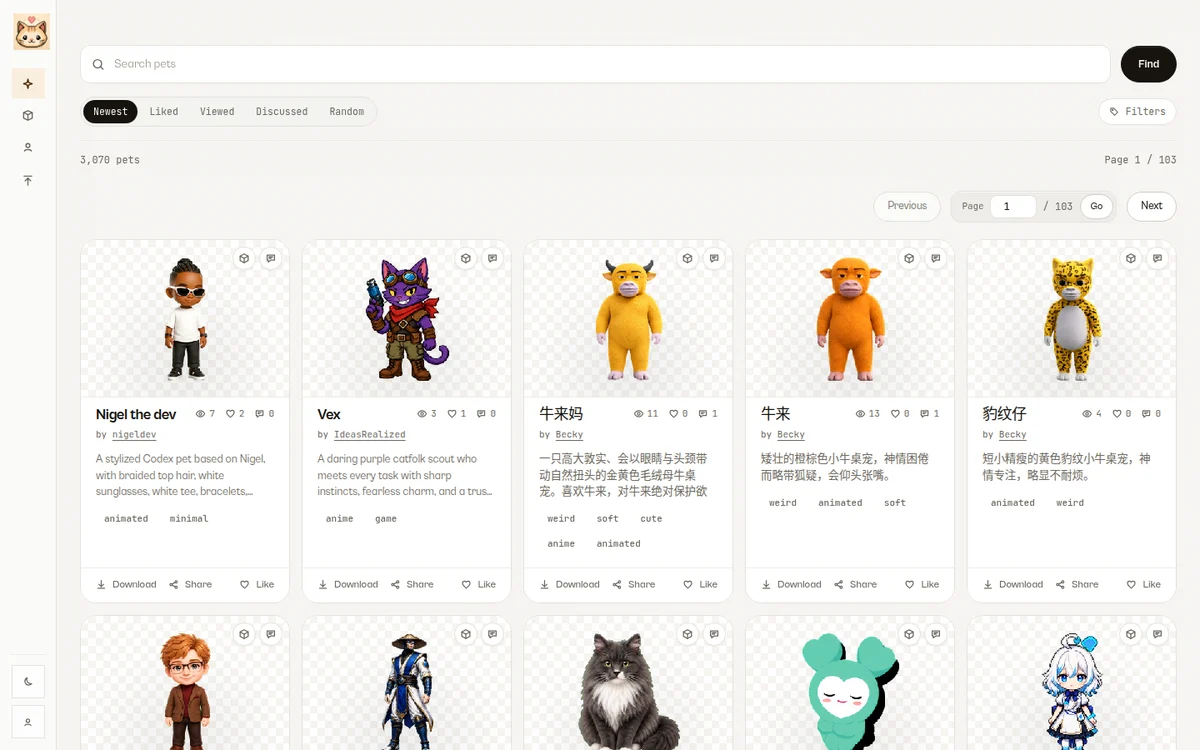
Installing is easy too. Open a character page (the URL looks like codex-pets.net/?pet=character-id) and the CODEX INSTALL panel on the right offers three routes:
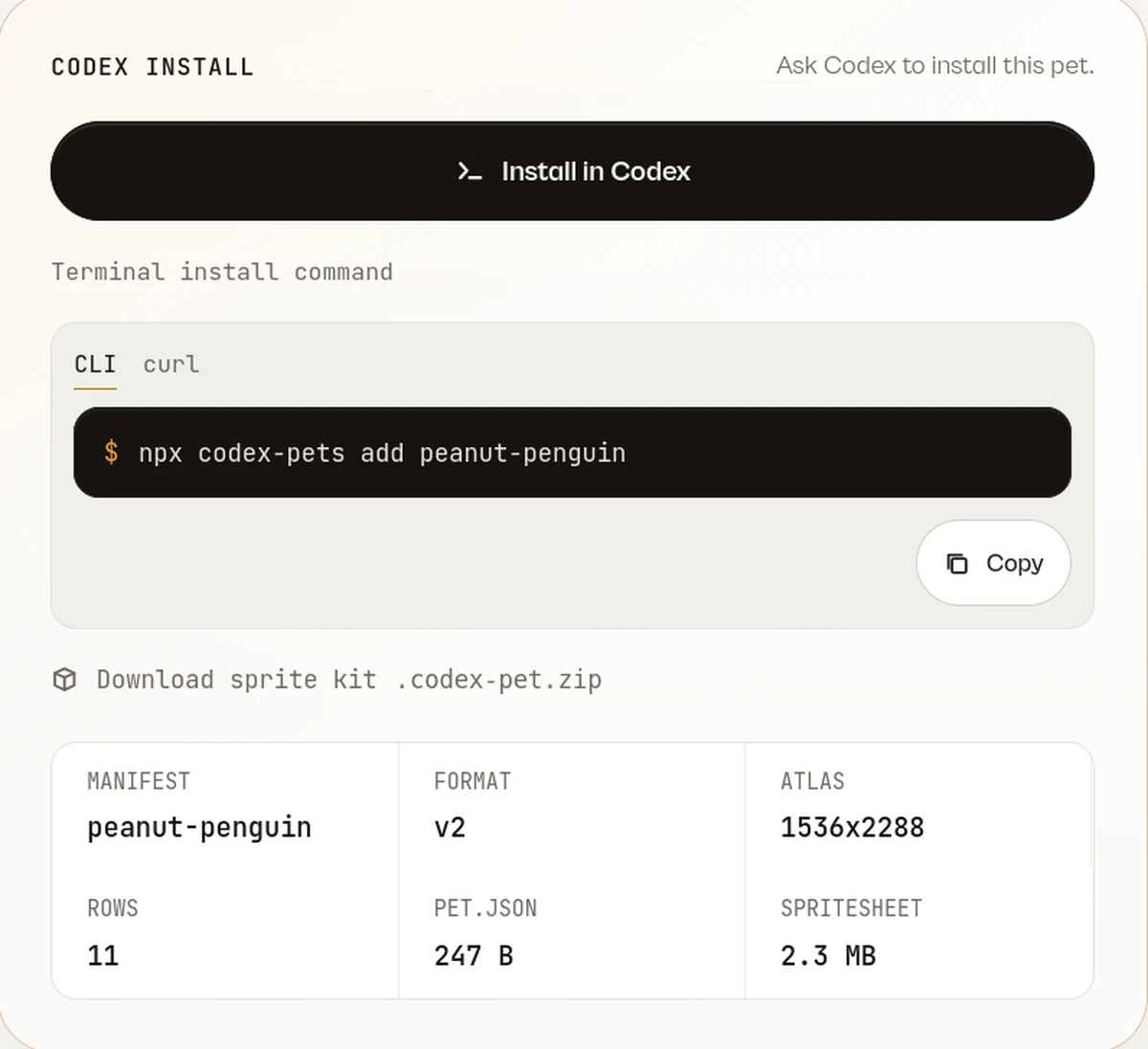
- Install in Codex: the easiest option. Press it and Codex installs the pet for you.
- Terminal command: copy
npx codex-pets add <character id>and run it in your terminal (the little penguin above has the idpeanut-penguin). There is a curl version next to it. - Manual download: press
Download sprite kitto get the.codex-pet.zip. Unzip it and you get the same two files,pet.jsonandspritesheet.webp. Drop the whole folder under~/.codex/pets/, using one folder per pet and naming it after the character id.
All three end up doing the same thing. Go back to Settings → Pets, press Refresh to rescan, and the new character appears in the list. Select it to replace the pet currently on your screen.
The spec row at the bottom of that panel is worth a glance: ROWS 11 means this pet has 11 rows of animation frames. Idle, Running, Failed, Waiting, Review and the rest all have to be drawn by the author, so the fewer rows a pet has, the fewer states it can act out.
On copyright, the site is clear about it in the footer: pets are shared by the community, some may be inspired by existing characters or brands, and the site claims no rights to those characters or brands.
Hatching your own pet
If the gallery does not have the character you want, the desktop app can make one. Go to Settings → Pets → Create your own pet and the app installs a skill called hatch-pet and opens a new chat. Describe the character you want (or drop in an image), then go back to Pets, press Refresh, and your new pet shows up.
The official image requirements are strict: a PNG or WebP with a transparent background, exactly 1536 × 1872 pixels, and under 20 MiB.
pet.json description reads "a tiny frustrated Codex pet inspired by Dario, CEO of Anthropic"Which means you can have an annoyed Dario (Anthropic’s CEO) handle your work for you inside an OpenAI app. Far too funny 🤣🤣
Where to find more pets
Open Settings → Pets for built-in and custom pets, or browse the Codex Pets community gallery for community-made characters.