
Herdr is a free desktop app for managing several AI coding agents at once. You can see how far each agent has gotten in a single window, and you can close the window and let them keep working. Below is a plain-language introduction.
What Is Herdr
First, a few terms. A terminal is a window where you give commands by typing, and AI coding agents like Anthropic’s Claude Code and OpenAI’s Codex work inside it. An assistant that can carry out tasks on its own is also called an agent. To learn more, see the AI Agent guide.
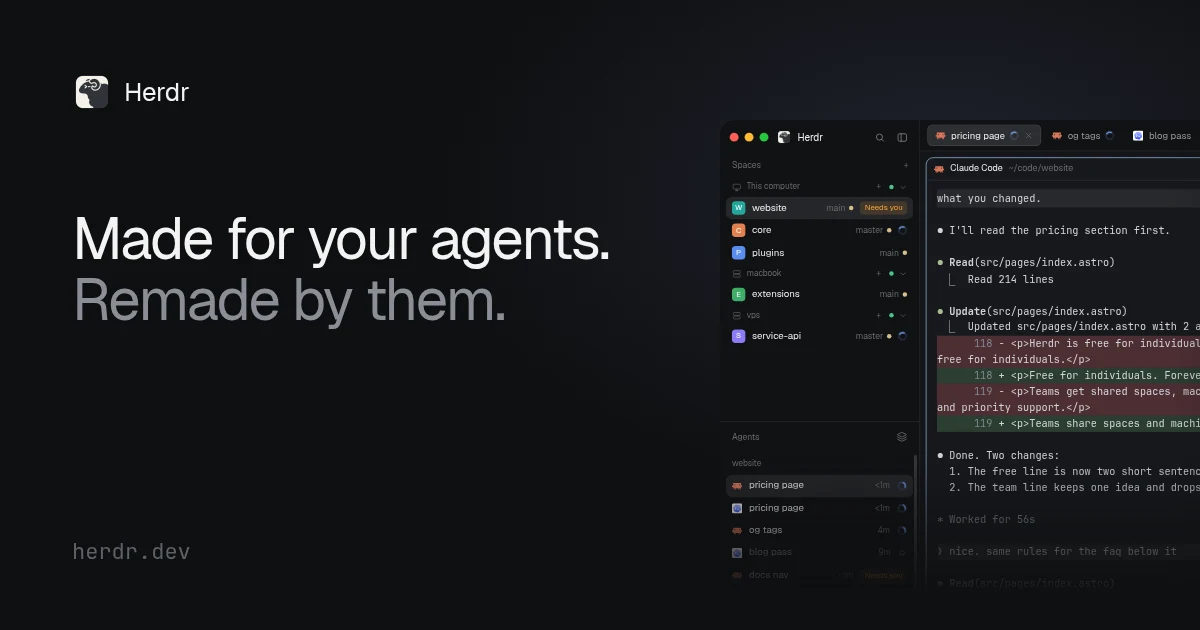
The more agents you run, the more terminal windows you end up with. With Herdr, you open terminals and start agents inside its app instead, and everything lives in one window. You can open a “space” for each project and a “tab” for each task, so you see all the progress at a glance.
It supports macOS (Apple silicon), Linux and Windows, and there are also versions for iPhone, iPad and Android.
What Problem Does It Solve?
When you run three agents at once, the hardest part is not knowing which one is stuck. Herdr’s sidebar marks each agent’s status:
- Working: still busy
- Needs you: waiting for your reply or approval
- Done: finished, and you haven’t looked yet
- Idle: nothing to do, or finished and you’ve already looked
This way you don’t have to open each one to check. You just deal with the one marked “Needs you.”
If You Close the Window, Do the Agents Keep Working?
Yes. The agents run on a small program called herdr-core, not inside the window. It is a small server that gets installed together with Herdr and runs in the background on your computer. Close the app, update it, or even if the app crashes, your terminals stay right where they were.
Two small reminders:
- If you close a pane or a tab, the terminals inside it end
- After your computer restarts, the panes come back, but the agents have stopped, so you have to start them again yourself
Can I Check Progress on My Phone?
Yes. The phone app has an inbox that sorts the agents on all your computers by “Needs you, Done, Working, Idle.” Tap one and you’re in a real terminal, where you can type, paste a screenshot, or reply with voice input.
Your phone connects straight to your computer over SSH (a way of making an encrypted connection). There is no Herdr server in between, and you don’t need to sign up for an account. When you’re away from home, you can use a VPN (virtual private network) tool such as Tailscale to reach your computer at home.
- iPhone, iPad: App Store
- Android: Google Play
After you open the phone app, tap “Try the demo” to look around with sample data first.
Can I Manage Agents on Other Computers Too?
Yes. If you have a remote server, virtual machine or cloud environment, you can add it to Herdr as long as you can reach it over SSH. The agents on that machine appear in the same sidebar, labeled with the machine’s name.
As long as the remote machine is on and herdr-core is still running there, its agents keep working even if your laptop sleeps or the app is closed. You can leave long-running tasks on the remote machine, and your own computer doesn’t have to stay on.
How Do I Get Started?
- Go to the official download page. On a Mac, download the .dmg and drag it into “Applications.” You can also paste the one-line install command from the page into a terminal, which is how it works on Linux and Windows.
- Open Herdr, click the + on the tab bar, and choose Claude Code, Codex, or any program you want to run.
- The agent has to be installed first. If you haven’t used Claude Code yet, start with the Claude Code beginner guide.
The official tutorial is a single sentence: in the agent’s chat, ask it to read the guide file ~/.config/herdr-app/AGENTS.md. Herdr saves its layout, keyboard shortcuts and themes as ordinary text files, so once the agent has read it, it can change them to match what you say, such as “add a timer to every tab.”
What’s the Difference Between the App and Herdr TUI?
Herdr TUI is the earlier version. It runs inside a terminal and has no graphical window. The app is a separate, new program. Each has its own server, and they don’t share agents: an agent started in the TUI won’t show up in the app or on your phone.
Beginners should just pick the app. The TUI suits people who are already used to working in a terminal.
Who Is It For? What Should I Know First?
It suits people who use two or more AI agents at once, or who want agents to work in the background for a long time and check the results later. If you only use one agent and do one thing at a time, you may not need it. Using the terminal directly is enough then.
Before you start, know that:
- It is free and open source under the Apache 2.0 license, with no account
- The agent has to support OSC 7501 (a public set of rules for programs to report their own status) for its status to show in the sidebar. An agent that doesn’t support it still runs in a pane, but it has no status, and it won’t appear in the sidebar’s agent list or the phone inbox
- Some people like to run agents inside tmux (a tool that splits a terminal into panes). Don’t add tmux inside Herdr. Run the agent directly in a pane so its status can be reported
- The Mac version only supports Apple silicon models
- The Linux version needs a desktop environment and a graphics driver that supports Vulkan
- To learn why AI agents are well suited to standing by for long periods, see always-on AI assistants