The Short Answer
An artifact is something Claude makes next to your chat. It can be a document, slides, a design, a data dashboard, a spreadsheet, a whiteboard, or a tool you can interact with. Finished artifacts are saved in the Artifacts tab, where you can keep editing them and share them. Since November 24, 2026, a custom artifact can also be installed as its own desktop app on Mac and Windows.
The Free plan includes three templates: Docs, Slides, and Design. Paid plans add Data, Sheets, Whiteboards, and the ability to connect other apps and store data.
What Is an Artifact?
Anthropic, the company behind Claude, defines it in the Help Center this way: “An artifact is anything Claude makes for you that you’d put in front of someone.” It opens in its own panel next to the chat, so it doesn’t get mixed into the chat messages.
When content is complete enough to stand on its own, Claude makes it an artifact. The Help Center gives the threshold as content that usually runs past 15 lines. Every artifact you have made is saved in the Artifacts tab in the left sidebar, so you can still find it days later.
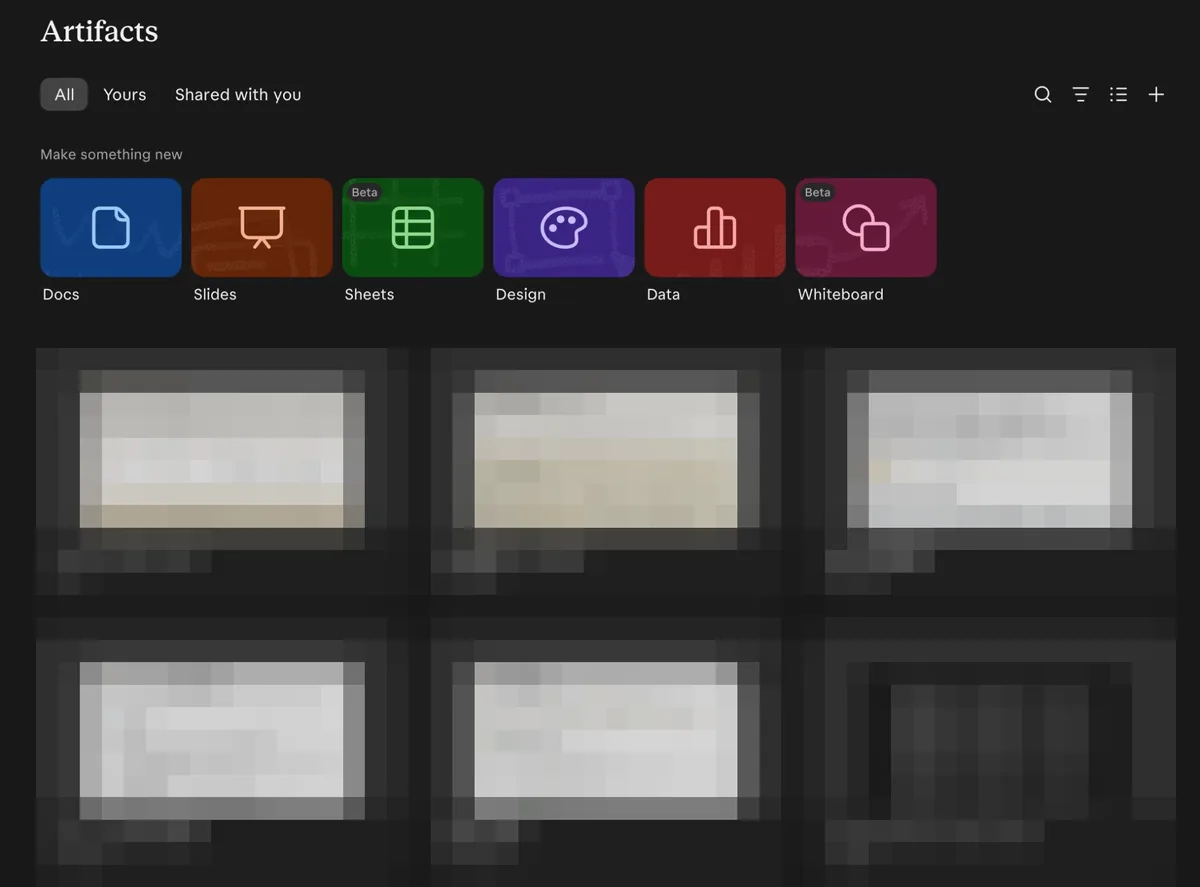
Image: Penchan’s Artifacts tab. You can start from a template at the top, and the artifacts you have made are below (titles and contents are mosaicked)
Artifacts launched in June 2024 as a preview feature with Claude 3.5 Sonnet, showing things like charts and web pages in a separate window next to the chat. On September 16, 2026, Anthropic switched to the current new system, launched Docs and Slides, and moved Design into the chat. The three first opened in beta to paid plans, and the beta ended on October 8, when the Free plan got access too. Artifacts made in a chat before September 16 are called legacy artifacts. They still open and share as usual, but you can’t make new ones.
What Kinds of Artifacts Can You Make?
| Type | What it does | Which plans can use it |
|---|---|---|
| Docs | Documents you write in real time with Claude and teammates | All plans |
| Slides | Presentations you can play right inside Claude | All plans |
| Design | Visual drafts, prototypes, one-page intros, landing pages | All plans |
| Data | Dashboards and data stories, with data from a connected data platform | Pro and above |
| Sheets (beta) | Spreadsheets where you and Claude edit in the same cells | Pro and above |
| Whiteboards (beta) | Whiteboards for brainstorming with your team and Claude | Pro and above |
| Motion (beta) | Animated explainer videos, exported as MP4 | Team, Enterprise |
| Custom artifacts | Web pages, charts, flowcharts, interactive tools | All plans |
Here “Pro and above” means Pro, Max, Ultra, Team, and Enterprise. Data was previously Claude Dashboards, which launched in beta in October, and it needs a connected data source to work. On November 10, Anthropic launched Sheets and Whiteboards, and Dashboards became generally available and was renamed Data. The details are in What Are Claude Sheets, Whiteboards, and Data?
The standalone Claude Design (claude.ai/design) will shut down on December 14, 2026. After that, use Design in regular chats.
How to Make an Artifact
- Turn on the setup: Go to Settings > Capabilities and turn on “Cloud code execution and file creation.” In the newer settings screen it is called “Create and edit files.”
- Describe what you need: In any chat, describe what you want, or click “Output” in the message box and pick a template. You can also start from the Artifacts tab.
- Edit: Ask Claude to change it. Template-based artifacts can also be edited by hand. In a document, highlight some text and click “Edit with Claude” to change only that part. If the code throws an error, a “Try fixing with Claude” button appears next to the error message.
- Export: Documents export to Word, PDF, Markdown, or Google Docs. Slides export to PowerPoint, PDF, or straight to Google Slides. Designs export to .zip, PDF, PowerPoint, or HTML. Motion animations export to MP4.
For example, you can tell Claude: “Make me a simple expense tracker. After I enter an amount and a category, draw a pie chart of this month’s categories below.” Claude builds a page on the right that you can use right away, and if you’re not happy with it, keep telling Claude in the chat what to change.
The iOS and Android apps can also ask Claude to make a document, slides, or a design, and you can view and edit them in the Artifacts tab.
Artifacts That Use Claude, Connect Apps, and Store Data
A custom artifact is more than a static page. It can do three more things.
- Call Claude: An artifact can have AI built in, such as a small tool that rewrites your sentences. Users sign in with their own Claude account, and usage counts against each user’s own plan, not the plan of the person who made it. No API key is needed. The first time a new artifact wants to use Claude, it asks whether you agree.
- Connect other apps: An artifact can read and write tools like Asana, Google Calendar, and Slack, on Pro and above, on the web and desktop. Even for an artifact someone else shared, each person connects their own account. The exception is live sharing, where you see the data connected by the person who shared it.
- Store data: Personal data is what each person sees on their own, and shared data is the same copy for everyone. The person who makes the artifact decides which data goes where. The default limit is 100 MB or 25,000 records, whichever comes first. Each uploaded file can be up to 20 MB (2 MB for SVG images), and one artifact can hold up to 5,000 files totaling 1 GB. This feature is also Pro and above, on the web and desktop.
How to Share an Artifact
A new artifact is visible only to you at first. To share it, open the artifact, click “Share”, choose who can open it, and copy the link to send out.
- Pro, Max, Ultra: Choose “Only you” or “Anyone with the link.”
- Team, Enterprise: You can invite specific people, the whole organization, or anyone with the link. The last option needs an organization Owner to turn on External sharing, or to allow it for a single artifact. Each person can be given “Can view,” “Commenter,” or “Can edit” access.
- Email invitations (beta): Only invited people can open it. Each artifact can invite up to 50 people outside your organization, and they need a Claude account registered with that email.
Most artifacts opened through a link don’t require you to sign in to a Claude account. Documents and spreadsheets are the exception: the visitor has to sign in to Claude and can only view. These visitors can’t use the parts of an artifact that call Claude or connect apps, and they can’t see comments. Artifacts that connect to other websites, and artifacts whose uploaded files are still being checked or failed the check, can’t be shared by link.
Sharing settings can only be changed on the web or desktop version, not in the mobile app.
For legacy artifacts, the Free, Pro, Max, and Ultra plans use the “Publish” flow, which creates a public link and also gives you an embed code for your own site. Once you unpublish, you can’t publish again, and the data stored in it is permanently deleted too. For legacy artifacts on Team and Enterprise, the flow is “Share & copy link,” and anyone with the link can also see the attachments and files in that chat.
New: Install an Artifact as a Desktop App
On November 24, 2026, Anthropic launched the Install as app beta, rolling out to all plans. An installed artifact gets its own icon and window, so you don’t have to open Claude to find it. Anthropic’s examples include a meeting prep page that pulls from your calendar and inbox, and a tool that tracks the orders to ship that day.
It is different from a browser’s “Add to Dock” or “Add to Home Screen,” which only make shortcuts. Once installed as an app, it is still the same artifact, and when you or another editor changes it, the app updates too. There is no packaging, no signing, and no API key. It uses your Claude account.
Install steps (Help Center version):
- Update Claude for Mac or Windows to version 6.28899.0 or later.
- Open the artifact in the main window of the Claude desktop app.
- Click the artifact’s title menu, or right-click the artifact.
- Choose “Install as app,” then confirm with “Install.” You can also find this option in the “Share” menu.
After installing, on Mac you open it from the Claude Apps folder inside the Applications folder in your home folder (~/Applications, not the one in the Finder sidebar). On Windows you open it from the Claude Apps folder in the Start menu or from a desktop shortcut. In the Claude desktop app, “File > Apps” also manages all your apps. To remove one, choose “Uninstall” there. That removes only the app and the permissions you gave it, and the artifact itself stays.
Permissions come in three levels:
- Default: It can do what it could do in a browser.
- App permissions: It can ask to send notifications, use global shortcuts, float above other windows, and put an icon in the Mac menu bar or the Windows system tray.
- Full computer access: It can run programs and read, change, or delete your files without asking you each time.
Each item is asked separately, and clicking “Allow” is valid only for the current version. After the app updates, including when you edit it yourself, Claude asks again.
Limits:
- It only supports the Claude desktop app for Mac and Windows, not Linux, the web, or phones. Opening an app requires an internet connection and a Claude sign-in.
- Template-based artifacts (such as Docs, Slides, and Sheets), legacy artifacts, and live artifacts made in Claude Cowork (the Claude work mode that was merged into regular chats in September 2026) before August 19 cannot be installed.
- The app’s usage of Claude counts against the installer’s own plan quota.
- On the Team plan it is on by default, but full computer access is off by default. On Enterprise, an Owner has to turn it on in “Organization settings > Artifacts.” Organizations that use the HIPAA-ready setup (HIPAA is the US health privacy law) or a hybrid deployment can’t use it.
Safety: Think Before Using Someone Else’s Artifact
- Someone else’s artifact is code someone else wrote: The Help Center advises: “Treat someone else’s artifact the way you’d treat a file from an unknown sender.”
- Anthropic doesn’t review apps: Anthropic states that it does not review apps before you install them, so give full access only to apps you trust.
- Full access has a bar: On personal plans, only apps you made yourself can request full access. Team and Enterprise extend this to apps made by members of your organization. If the source is unknown, or someone outside the organization wrote part of it, Claude shows a warning and usually doesn’t allow it to request full access.
- Part of an app’s content can come from outside websites: Anthropic warns that when that content changes, Claude does not ask you again.
Penchan’s Take
Artifacts grew from a 2024 side panel that showed code into today’s documents, slides, spreadsheets, whiteboards, and tools, and the latest step is installing them as desktop apps. For most people, the most useful move is to ask Claude to turn something you do every day into a small tool. On the free plan, make a Docs or Slides file first to learn the flow, and consider upgrading when you need to connect a calendar or store data. Keep installing as an app for tools you open every day, and give full computer access only to apps you made yourself.